RC Setlist
Setlist, synced lyrics and stage display for Ableton Live 12 — free for noncommercial use.
Your Arrangement locators become the show: a setlist for whoever runs it, a stage display for whoever plays it. Live keeps the clock; the browser reads it.
- Live 12.4.5+ Suite (Beta)
- RC Bridge included
- Any browser on your network
- No account · no telemetry
Release 1.0.0 · source-available under PolyForm Noncommercial 1.0.0 · English and Português (Brasil) in the same package
Signal chain — Live owns the time
Live plays; RC Setlist reads its position and asks it to move; the browsers show only what Live confirmed.
2.1 What you need
| Piece | Where | Role |
|---|---|---|
| Live 12.4.5+ Suite (Beta) | The computer | Hosts the extension. The Arrangement is the source of truth. |
| RC Bridge | Live, as a Control Surface | Transport, jumps and song position. Ships in the kit; a stock AbletonOSC also works. |
| A browser | Laptop, tablet or phone | Opens both views from a link or QR code. Nothing to install. |
Locators — from Arrangement to stage
Name the locators once. Songs, sections and tags come straight from the Arrangement, and nothing hidden is written into your project.
In Live — Arrangement locators
Swipe the drawing sideways to see the whole set.
In Stage Control — the cards it draws
3.1 Tag grammar
| In the locator | What happens | On the card |
|---|---|---|
[bpm 120] |
Declares the tempo. Durations become exact. | 120 BPM |
[click] [click off] |
Turns Live's metronome on or off at the marker. | CLICK CLICK OFF |
[loop] [loop 2x] |
Loops the section until released, or N times. | LOOP 2x |
[next] |
Hands playback to the next song the moment the marker is crossed. | NEXT |
[stop] |
Stops the transport at the marker. | STOP |
[skip] |
Passes over this song or section. | SKIP |
[jump Chorus] |
Hands playback to a named song or section. | JUMP → Chorus |
[hidden] |
Keeps an automation anchor off the setlist. | — |
[ignore] |
A technical marker: hidden, and its tags do nothing. | — |
Tags are case-insensitive and vanish from the displayed name. Except [hidden] and [ignore], you never type them: double-click a song or section in Stage Control and each tag is a control.
3.2 Set duration
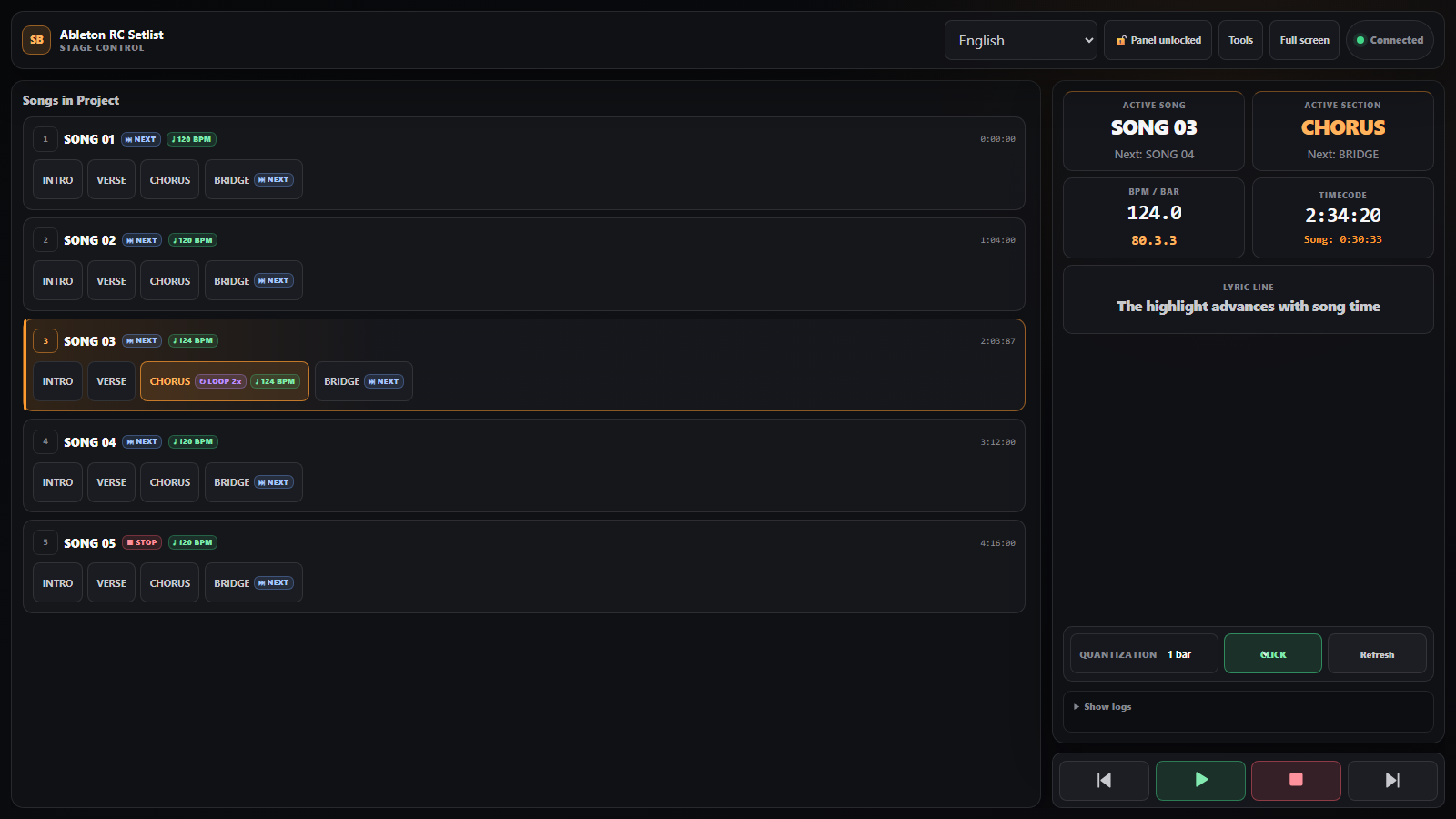
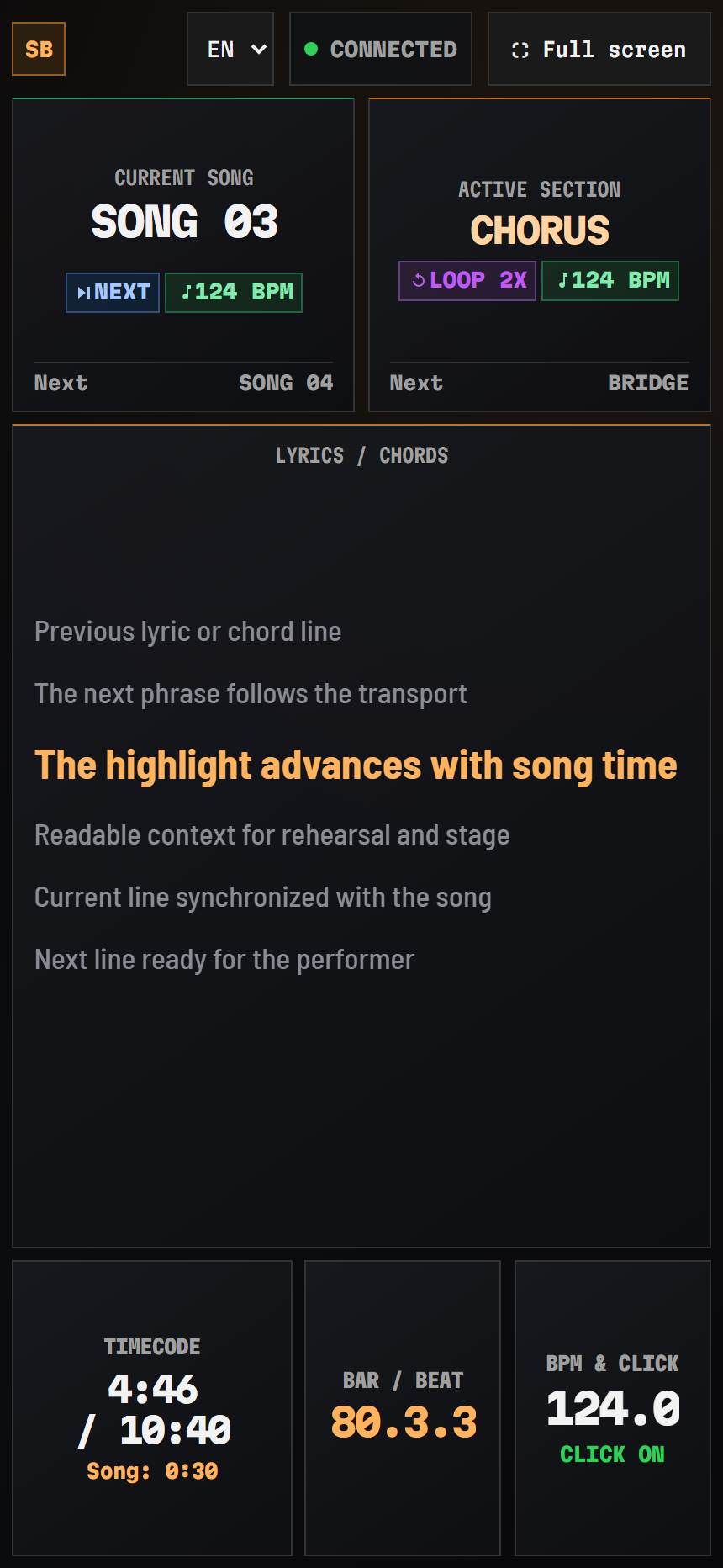
Two views — figs. 4 to 6
Stage Control is for whoever runs the show. Performance is for whoever plays it: read-only, high contrast, readable from the mic stand.
Stage safety — nothing fires by accident
Every control that can stop the show is held, not tapped. No confirmation dialogs mid-song.
Quantized jumps
A cue goes to Live at once and Live lands it on its next grid line.
Count-in, one bar
With COUNT-IN on and Live stopped, Play counts one bar on its own button at the tempo the setlist declares, then starts Live on the downbeat. Visual only by default: the phone never beeps on stage.
Refused while it plays
Marker edits, setlist switches and language changes are refused while Live plays.
Brief drops
A reconnect keeps the last valid state on screen and says so, instead of going blank.
Installation — five steps to the first cue
-
Download
RC-Setlist-1.0.0.ablxand the installation kit, from the latest release. -
Install RC Bridge
Run
Install-RC-Bridge.cmd(Windows) orInstall RC Bridge.command(macOS) from the kit. In Live, open Settings › Link, Tempo & MIDI and pick RCBridge as a Control Surface. -
Install the extension
Open the .ablx and approve the installation in Live.
-
Start the server
Open Extensions › RC Setlist and press Start. The panel shows a link and a QR code for each view.
-
Open the views
Scan the QR code or open the link. Accept the local certificate only when the address matches the one the panel shows.
Coming from 0.x? Run the kit's migration script once, before opening Live with 1.0 — see the installation guide. Windows is validated; macOS is experimental in this release.
When it does not work
7.1 Troubleshooting
RC Setlist is not in Live
Check Live 12.4.5+ Suite (Beta). Reopen the .ablx, restart Live, look under Extensions.
RCBridge is not in the list
It belongs in User Library/Remote Scripts/RCBridge — the kit's
installer puts it there. Restart Live once.
The playhead does not move
Press Check OSC in the panel; its OSC line names the script that answers. After installing RC Bridge, press Restart.
No songs appear
The Set needs Arrangement locators. Songs first; sections as
Song > Section or > Section.
The page does not open
Same network, not a guest one. Allow TCP 4444 on the private profile only.
Controls are read-only
Open the controller link or QR code from the panel: its token enables the transport.
7.2 Frequently asked
Is it free?
Yes, for noncommercial use: no price, no account and no subscription.
Does it show lyrics on stage?
Yes. Synchronized .lrc lyrics follow the song on any phone, tablet or laptop, and you time the lines in the browser.
Does it work with backing tracks?
Yes. Live keeps playing your tracks; RC Setlist runs the setlist, moves through the Arrangement and shows the lyrics.
An app on the phone?
No. Any current browser on the same network.
Do I need AbletonOSC?
No. RC Bridge ships in the kit and runs beside a stock AbletonOSC or RC Surface.
Where does my show data go?
Nowhere. Setlists, lyrics and exports stay in local profiles.
Why no count-in sound?
It is visual by default. A notebook feeding in-ears can opt in, one device at a time.
Session View?
Not yet. This release reads Arrangement locators.
Can I use it commercially?
No. Use, change and share it for noncommercial purposes under PolyForm Noncommercial 1.0.0.